
Shopify Product Variant Schema: How to Map and Validate Variants
Map Shopify variants, SKUs and URLs to ProductGroup, hasVariant and variant offers, remove duplicate JSON-LD, and validate markup against the live storefront and feed.

Published
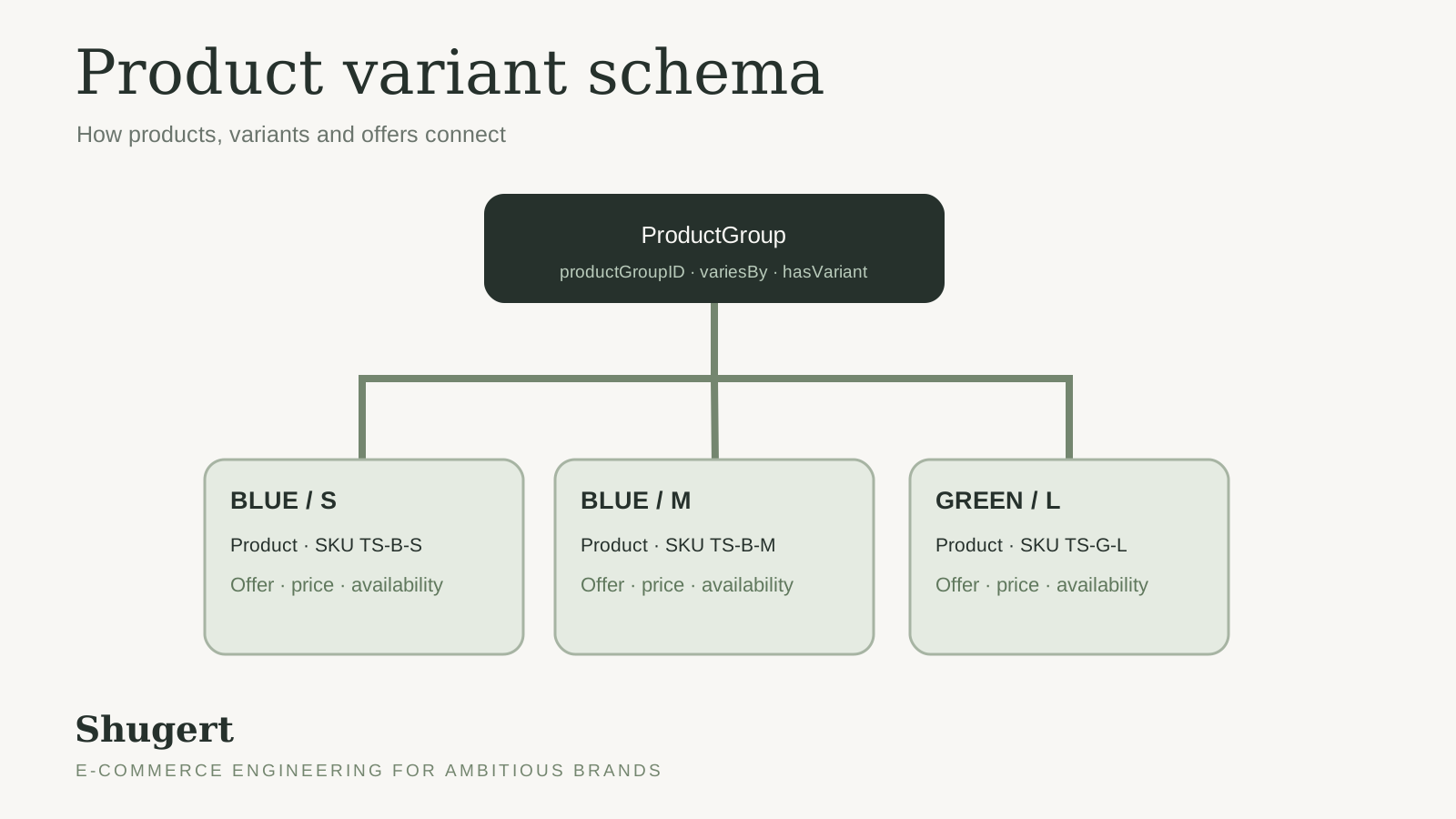
A product page passes validation and the price looks right in Search Console, but then Merchant Center flags a mismatch. The shopper picks the large variant, the visible price changes, and the JSON-LD still describes the default variant. This failure is common on established catalogs, and installing another app doesn't fix it. Shopify product variant schema usually breaks in three places: variant identity, duplicate blocks, and the gap between rendered HTML and markup. An audit should start there.
This guide shows how to check what your theme already outputs, map each variant to the identifiers and URLs that schema needs, choose one owner for the markup, and validate the result against what a shopper can actually buy.
Check What Shopify Already Outputs
Open a product page, view the source, and search for application/ld+json. Count the blocks, note the @type of each one, and compare its offer with what the page shows. Do this for one URL per template before you change anything. That output is the baseline you measure every fix against.
Most established stores aren't starting from zero. The theme emits something, an SEO app adds more, a review widget injects a rating, and custom Liquid from an earlier project may still be running. You need to know the source of each block before you edit any of them.
What the Native Filter Emits
Shopify's structured_data filter documentation says the filter supports product and article objects. For products with variants, the filter can output a ProductGroup with nested variants instead of a single Product. Don't assume every product renders one way. Check the output of the theme you actually run on a single-variant product and on a multi-variant product, and record what each one returns.
The difference matters. A ProductGroup tells search engines that one page represents several purchasable variants, each with its own price and availability. A single Product with one offer tells them the page sells one thing at one price. If the markup and the catalog disagree on which case applies, every downstream check inherits that error.
Having a block doesn't mean it's complete. A block can be valid JSON and still miss the selected variant's price, a GTIN the catalog actually holds, or an availability value that tracks inventory.
Practical rule: Record the block count, type and source layer for every template first. A fix applied to the wrong layer creates a second block instead of correcting the first.
Expected Markup by Template
| Template | Typical markup | What to verify |
|---|---|---|
| Single-variant product | Usually Product (confirm the filter's actual output) | One offer with price, priceCurrency and availability that match the visible page |
| Multi-variant product | ProductGroup with hasVariant | A stable group ID and one variant entry per sellable option, each with its own offer |
| Collection listing | No full Product per card | Card links and names only, without full product markup for every card |
| Blog article | Article or BlogPosting | Headline, author, and publish and modified dates that match the visible article |
For each row, record three things in the audit sheet: the number of ld+json blocks, the schema type of each, and whether the offer price matches the visible price. Then label each block as theme, app or custom Liquid. That label decides which layer you edit later and which you leave alone.
Map Variants, SKUs and URLs Before You Code
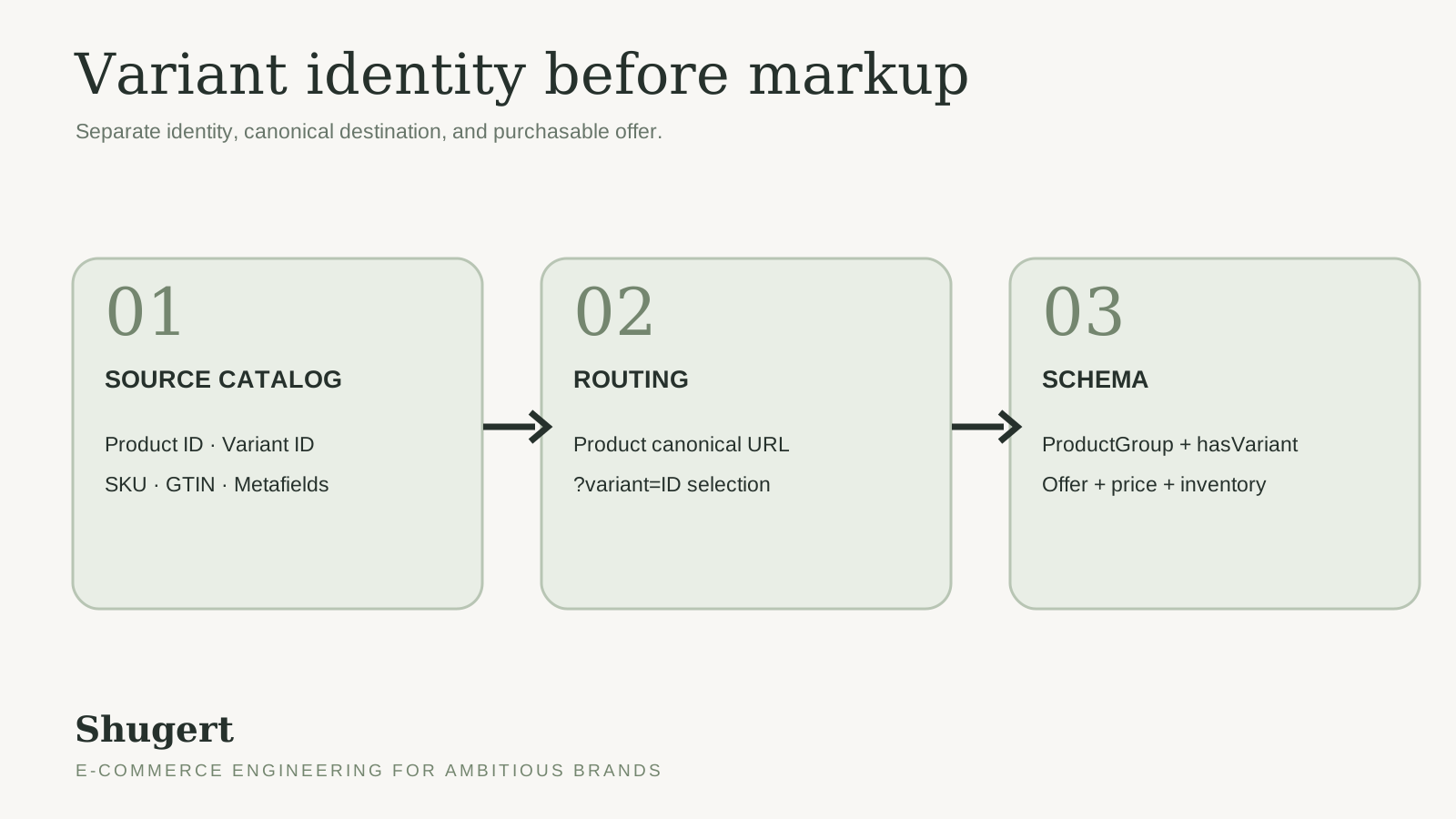
A template can only output identifiers the catalog holds. If SKUs are duplicated, barcodes are missing, or variants can't be reached directly, clean Liquid won't rescue the markup. Resolving those questions in a spreadsheet is cheap. Resolving them in code review isn't.
Build the Export First
Export the catalog with product ID, variant ID, SKU, barcode or GTIN, product handle, price, currency and inventory status. Add any custom identifiers stored in metafields, such as an MPN. Those fields are often the only source for values the default output leaves out. If a value isn't in the export, the template can't produce it reliably.
Google's product variant structured data documentation asks for a unique identifier on each variant, a group identifier (productGroupID) on the product group, and the properties the variants differ on (variesBy). It describes two supported page patterns. In the first, each variant has its own page. In the second, one page holds every variant and the shopper chooses among them. For the single-page pattern, Google says the markup doesn't have to change when a shopper selects a different variant, as long as the ProductGroup lists every variant. Google recommends that each variant still be reachable through a URL that preselects it, such as Shopify's ?variant= parameter. That URL can canonicalize to the parent product page.
So the goal isn't a separate indexable canonical for every variant. Every variant needs a stable identity, an offer that matches what the shopper would pay, and a URL that resolves to that selection.
Shopify Fields Mapped to Schema.org Properties
| Shopify field | Schema.org property | Notes |
|---|---|---|
| Parent product ID | productGroupID | One group ID per parent product, kept stable when product data changes |
| Variant SKU | sku | A stable identifier, reused across countries and languages |
| Variant barcode | gtin13 or gtin | Use the GTIN format the catalog holds, and flag variants that have none |
| Option names | variesBy | For example https://schema.org/size and https://schema.org/color |
| Variant price and currency | offers.price and offers.priceCurrency | Each variant's own price, not the default variant's |
| Variant inventory status | offers.availability | Sold-out or discontinued variants must not report InStock |
| Variant URL | url / offers.url | A URL that preselects the option. It may canonicalize to the product page |
An Illustrative ProductGroup Example
The snippet below is illustrative only. It uses an invented product, invented SKUs, prices and URLs, not real store data. It shows how productGroupID, variesBy and hasVariant fit together for two variants, each with a distinct URL and its own offer.
{
  "@context": "https://schema.org",
  "@type": "ProductGroup",
  "name": "Example Organic Tee",
  "url": "https://example.com/products/organic-tee",
  "productGroupID": "TS-ORGANIC",
  "variesBy": ["https://schema.org/color", "https://schema.org/size"],
  "hasVariant": [
    {
      "@type": "Product",
      "name": "Example Organic Tee - Blue / S",
      "sku": "TS-B-S",
      "color": "Blue",
      "size": "S",
      "url": "https://example.com/products/organic-tee?variant=1001",
      "offers": {
        "@type": "Offer",
        "price": "28.00",
        "priceCurrency": "USD",
        "availability": "https://schema.org/InStock",
        "url": "https://example.com/products/organic-tee?variant=1001"
      }
    },
    {
      "@type": "Product",
      "name": "Example Organic Tee - Green / L",
      "sku": "TS-G-L",
      "color": "Green",
      "size": "L",
      "url": "https://example.com/products/organic-tee?variant=1003",
      "offers": {
        "@type": "Offer",
        "price": "30.00",
        "priceCurrency": "USD",
        "availability": "https://schema.org/OutOfStock",
        "url": "https://example.com/products/organic-tee?variant=1003"
      }
    }
  ]
}
In a real theme, every literal value comes from Liquid objects. No price or availability should be hardcoded.
The Mapping Sequence
- Export the catalog: Pull every field in the table, plus metafield identifiers, into one sheet.
- Flag the gaps: Mark missing SKUs or GTINs, duplicate identifiers and price mismatches before you change any code.
- Assign group IDs: Give each parent product one
productGroupIDand keep it stable across markets and languages. - Test variant URLs: Open each variant URL and confirm it preselects the right option with the right price, and that its canonical points where you intend.
- Hand over the map: Treat the finished sheet as the contract the developer builds against.
The URL step catches the quietest failure. Some custom selectors change price and availability without updating the URL. Search engines and shopping feeds then can't tie an offer to a specific variant. This pattern is common on Plus stores with color and size combinations, subscriptions or regional catalogs. To align titles, canonicals and variant URLs with this mapping, see the guidance on Shopify product page SEO architecture. More schema isn't automatically better. Incorrectly grouped variants send conflicting signals even when the JSON is valid.
Choose a Theme, App or Custom Liquid Owner
Every block needs one owner. The owner maintains the markup through theme upgrades, app renewals and catalog changes. Three models cover most stores, and the right one depends on how custom your variant logic is.
The Three Ownership Models
- Native theme output: It costs nothing extra and stays versioned with the theme. It only reflects the fields the theme exposes, so custom identifiers and bundles need extra work.
- SEO or schema app: It adds breadcrumbs, FAQ and review blocks quickly without code. The trade-off is a second source that can duplicate native output, depends on the app's own scripts and metafields, and adds a recurring subscription to your total cost of ownership.
- Custom Liquid: It gives full control over offers and identifiers, and suits regional pricing, subscriptions or custom selectors. The cost is maintenance: someone has to retest the block after every theme upgrade.
The decision rule is simple. If the theme already emits the type you need with complete fields, keep it and skip the app. If a type is missing, add it from one source only. If your variant logic is custom, write the block in the theme and turn off any app module that duplicates it.
A second Product block doesn't double the signal. It gives the search engine two versions of the facts and no reason to trust either one.
Duplicates usually arrive through app sprawl, one install at a time over several years. The overview of Shopify SEO apps helps separate apps that add a missing type from apps that repeat what the theme already ships. During the audit, write the owner's name next to each block in the sheet. When a theme update or a new install creates a duplicate later, that record shows which layer changed and which one to turn off.
Implement JSON-LD Without Duplicate Blocks
Duplicates are the most common implementation defect, because each layer looks correct on its own. The theme block validates and the app block validates, but together they describe the same product twice with slightly different values. That conflict shows up in the page source, so implementation starts there.
The Implementation Sequence
- Find every block: Search the source for
ld+jsonon one URL per template and list each block you find. - Name each source: Label every block as theme, app or custom Liquid, using the audit record.
- Remove the duplicates: Turn off the app module or the theme block so exactly one
ProductorProductGroupremains per product URL. - Prefer generated output: Where it covers your needs, use
{{ product | structured_data }}in the product section instead of hand-written JSON-LD that goes stale when variants change. - Check the server response: Confirm the block appears in the raw HTML, not only after JavaScript runs.
For custom markup, build each variant's offer from that variant's own Liquid data, so prices and availability can't drift from the admin. If you use the single-page pattern, the ProductGroup must list every variant. If you update the markup when a shopper selects a variant, keep it consistent with the visible state. Teams that draft a block from scratch sometimes prototype the field structure with a schema markup generator tool from AY Rank, then replace every literal value with Liquid objects before shipping. Until each field pulls from the live catalog, that prototype is a sketch, not production code.
Handling the Supporting Types
Breadcrumbs should come from one source, usually the theme's breadcrumb snippet, and must match the visible trail. Before you build FAQ markup, check its current eligibility in Google Search Central, and mark up only questions that are visible on the page. Leave review data out unless the page displays the same reviews.
Read custom identifiers from metafields in the product template, so a missing value shows up in the audit instead of rendering blank. Headless storefronts follow the same rules, with markup rendered on the server. Stage every change in a development theme under version control, so a rollback removes the markup change and nothing else.
Validate Markup Against the Rendered Page
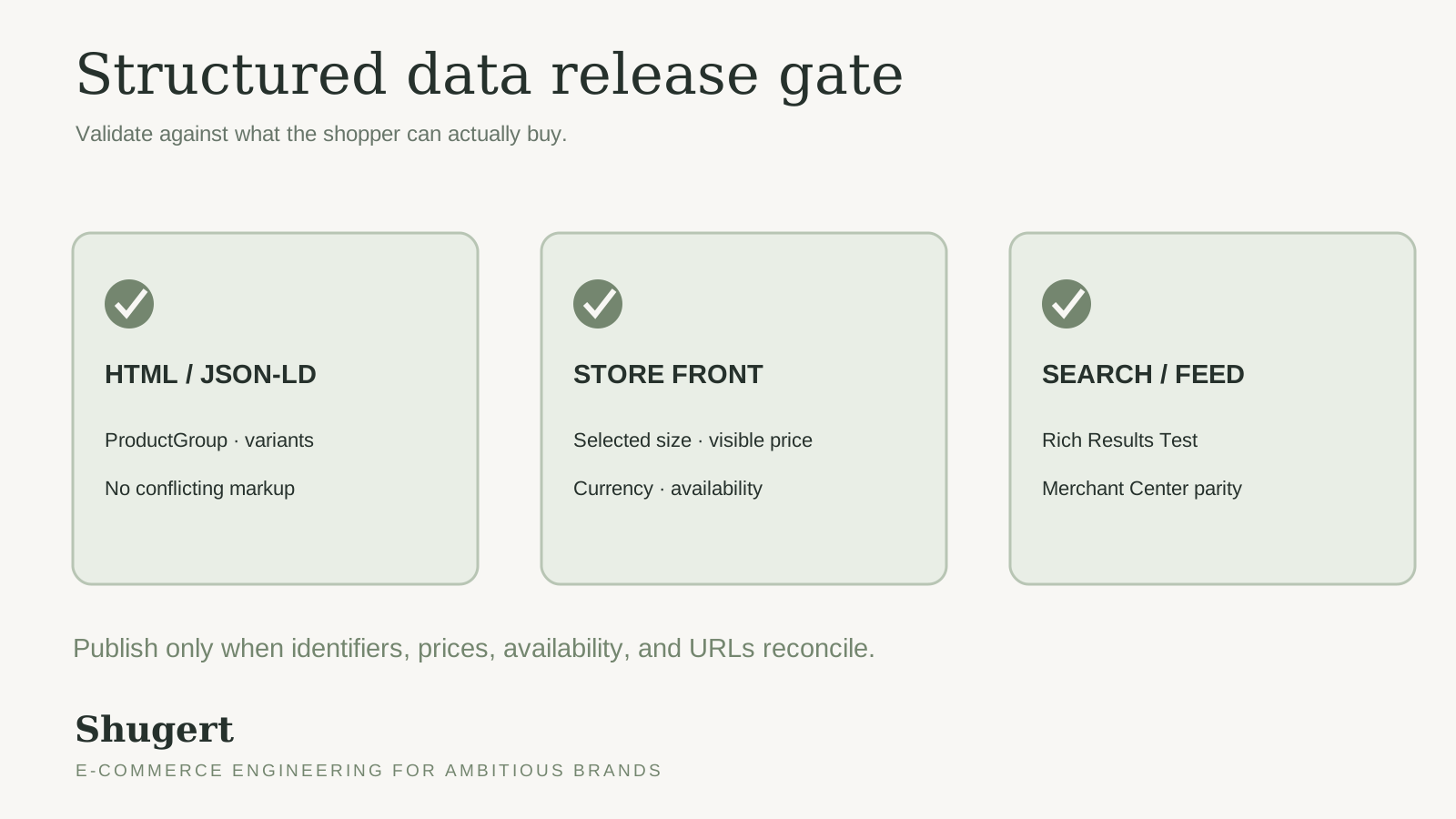
Validation answers a narrow question: is the JSON valid and eligible for search features? It doesn't tell you whether each variant's offer matches its price, whether availability matches inventory, or whether the mobile template emits the same block. Test all three layers in order: the server response, then the rendered page, then both device views. Passing validation makes a page eligible for rich results. It doesn't guarantee Google will show them.
Mobile and Desktop Parity
Shopify's guidance on content parity between mobile and desktop says mobile and desktop versions should keep the same core content and structured data, and that content missing or hidden on mobile may not count toward search ranking. Shopify recommends comparing the rendered versions with Search Console's URL Inspection tool and running the Rich Results Test on both mobile and desktop.
That makes parity a concrete test. An accordion that hides specifications on mobile, or a tab that drops a review block, is a parity failure even when desktop passes. Text, internal links, images and structured data all need to match between the two rendered versions.
Testing Tools and What Each One Confirms
| Tool | What it confirms | When to run it |
|---|---|---|
| Rich Results Test | Detected structured data and rich result eligibility for one URL | After every template change, on mobile and desktop |
| Search Console URL Inspection | Rendered HTML as Google sees it, compared with the live page | Before and after launch, on a sample of templates |
| Merchant Center diagnostics | Price, availability and identifiers checked against the product feed | After each feed sync |
| Schema Markup Validator | Syntax and vocabulary of each JSON-LD block | During development, before the template is deployed |
The Pre-Launch Checks
- Count blocks per template: The source should show one
ProductorProductGroupblock per product URL. - Reconcile sample products: Compare each variant's price and availability across the page, the markup and the feed.
- Compare device views: Diff the mobile and desktop rendered HTML for one representative URL.
Test representative templates, not just one easy product: single-variant, multi-variant, out-of-stock, sale pricing, a second market's price, and a product with more than one offer. Success means each variant's offer matches its visible price and stock, ratings match the visible reviews, and Search Console enhancement reports are clean. Catalogs with ERP-driven pricing need a full reconciliation with a named owner, because a small sample won't catch systematic gaps. If you want an outside starting point, Shugert offers a free Shopify signal audit. It scans performance, technical SEO, the buying experience and AI readability for a store URL.
Fix the Errors That Break Product Markup
A live product page can show a sold-out variant while its JSON-LD still reports InStock. The markup passes syntax checks and is still wrong, because the availability, price or review fields don't match the store's real state. Fix errors in the order they affect the offer.
Structured Data Symptoms, Causes and Fixes
| Symptom | Likely cause | Fix |
|---|---|---|
| Two Product blocks on one product page | Theme and SEO app both emit JSON-LD | Follow the single-owner setup from the implementation section, then recheck the page source |
| Variant offer shows the default variant's price | The offer is built from product.price instead of each variant | Build every variant's offer from that variant's price and currency |
Discontinued variant shows InStock | Availability isn't tied to variant inventory | Map availability to each variant's inventory status |
| Star rating shows with no visible reviews | AggregateRating uses manual or rounded figures | Use counts from the review dataset displayed on the page |
| Collection cards carry full Product markup | The collection loop renders product markup for each card | Output product markup in the product template only |
| Markup missing on mobile | Accordion or tab output differs between device views | Compare the rendered mobile and desktop HTML and restore the missing block |
Triage Order
- Correct offer prices: Each variant's offer must carry that variant's price, including sale pricing and market currency.
- Tie availability to inventory: Sold-out and discontinued variants must not claim
InStock. - Align ratings with reviews:
ratingCountandreviewCountmust match the displayed review dataset, not rounded marketing figures. - Strip collection markup: Full Product markup belongs on product pages, not in the collection loop.
Check prices closely on multi-variant products. Each variant's price, sale price and currency should agree across the rendered page, the offer data and the feed. Availability must also update when inventory changes. A value that was correct at publication goes stale after a sell-out.
Ratings are often a data problem that looks like a template problem. If the review dataset can't produce defensible counts for a product, remove the aggregate until it can. Collection cards should carry product signals only when the page itself represents that product.
Retest discipline: After each fix, rerun the same URL list from the original audit. If the sample changes, you can't compare results over time.
Assign each fix to a sprint with a named owner. Record the relevant template and data source, so later theme or app changes don't reintroduce stale offer details.
Carry Structured Data Through a Platform Migration
A migration replaces the identifier system underneath the markup. Magento and WooCommerce catalogs often carry product schema from extensions with their own ID conventions. Those IDs don't map cleanly onto Shopify product and variant IDs unless someone builds the bridge on purpose. That bridge is a crosswalk, and it belongs in the launch artifacts alongside the redirects.
Build the Crosswalk Before Cutover
Export the old platform's markup and identifiers together, then link each old product ID or SKU to the new Shopify product ID, variant ID and canonical URL. Redirect old variant URLs to the matching Shopify variant URL when one exists, or to the parent product when it doesn't, and record the decision for each URL. Confirm the new theme places the same identifiers in the same fields, and that headless storefronts render markup on the server.
A Shopify migration covers data, redirects, SEO preservation, integrations, QA, launch and stabilization. Structured data parity belongs inside the QA work, not after it. Settle identifier ownership in the architecture and written scope, which define the Shopify destination, data contracts, URL ownership, milestones and acceptance criteria. The Shopify migration guide covers timeline, cutover and stabilization in more detail.
Treat the crosswalk as a document QA checks at launch, not a spreadsheet one person maintains. When a variant goes missing or an ID gets reassigned mid-project, the crosswalk shows which URLs and offers are affected.
Shopify product variant schema failures on established catalogs are usually identity, ownership and parity problems. They are engineering problems with testable fixes. Shugert scopes this work inside Shopify and Shopify Plus migrations, technical SEO audits and ongoing engineering for DTC and B2B brands with complex catalogs. Visit Shugert to start with an audit of what your store outputs today.
Keep reading

Shopify Product Page SEO Architecture Guide
A technical Shopify product-page SEO guide to canonicals, variant URLs, Product schema, internal linking and Core Web Vitals at catalog scale.
Technical SEO for Ecommerce: An Engineering Playbook
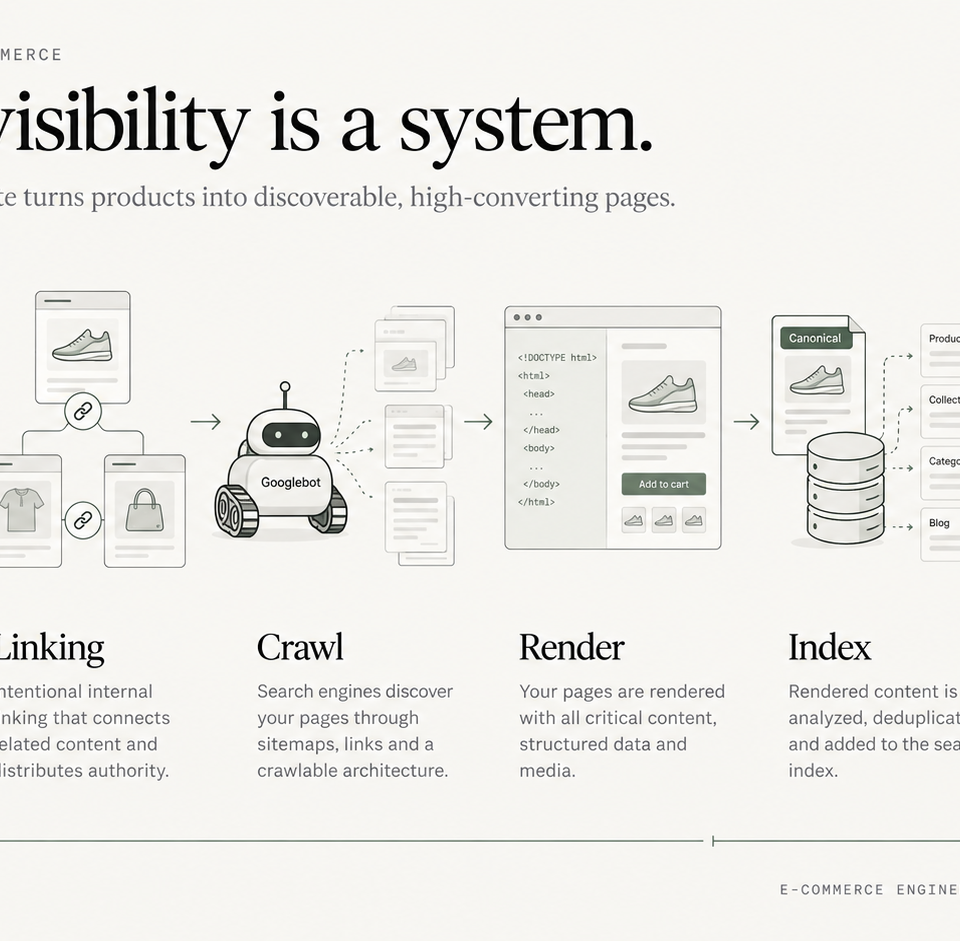
A systems-level guide to crawl allocation, faceted navigation, rendering, Core Web Vitals, migration SEO, and release governance for large ecommerce stores.

Shopify Performance Audit: How to Audit Every Store Template
A Shopify performance audit method for product, collection, search, cart, and homepage bottlenecks using real user data.